Showing posts with label SharePoint. Show all posts

Tuesday, March 12, 2013

Get SharePoint Users List from Infopath Form People Editor

Today I am doing some R & D with Infopath form & workflow. I want to pass multiple users from Infopath to workflow for multiple users' task creation.

I have searched on google but not getting proper result for above. That's why I have decided to write this post for other user's help.

See below image for visualization.


Now, fire button click & add below code.

        public void btnGetUsers_Clicked(object sender, ClickedEventArgs e)
        {
            // Write your code here.
            XPathNodeIterator sentToIterator = MainDataSource.CreateNavigator().Select("/my:myFields/my:reviewersGroup/pc:Person/pc:AccountId", NamespaceManager );
            string result = "";
            int count = 1;
            foreach (XPathNavigator selectedNode in sentToIterator)
            {
                if (count < sentToIterator.Count)
                {
                    result += selectedNode.InnerXml +"; ";
                    count++;
                }
                else
                {
                    result += selectedNode.InnerXml;
                }
            }
        } 
Happy SharePointing...!!!

Saturday, March 2, 2013

The process cannot access the file because it is being used by another process. (Exception from HRESULT: 0x80070020)

Today I am trying to open my SharePoint port 80 Site in my Laptop which has installed window 7 Ultimate 64 bit OS.

But can't open site in browser so I have checked IIS Manager and seen port 80 site is stopped. So I have tried to start that site but can't start and error fire as below.

Error: The process cannot access the file because it is being used by another process. (Exception from HRESULT: 0x80070020)  

Cause: After few minutes of research, I have seen one problem. Problem was Skype is by default use port 80 that's why I faced the issue.

Resolution: Go to Skype > Tools > Advance (left side Tab) > Connection > Now unchecked port 80 as per below screen.


Happy SharePointing...!!!

Thursday, November 10, 2011

Microsoft SharePoint is not supported with version 4.0.30319.239 of the Microsoft .Net Runtime

SharePoint 2010 does not support access from .NET Framework 4 or being run in a .NET Framework 4 app domain.

Solution :
If you must support the .NET Framework 4, we recommend that you develop a web service that uses the .NET Framework 4 and then connect to it from SharePoint.

Limitation:
All server-side customizations directly for SharePoint 2010 still need to be either the .NET Framework 3.5 or the .NET Framework 3.5 SP1.

You can't directly give the reference of assembly which has run time framework is 4.0.


Happy SharePointing...!!!

Tuesday, October 25, 2011

Using HTTPContext object Redirect Page from EventHandler

We need to display custom page redirection after adding list item.
We have to implement Synchronous event handler for above list because we can get HttpContext in Synchronous event handler & redirect to custom page using SPUtility.Redirect method.
See the below code for redirect custom page after adding list item. 
public class SyncEventReceiver : SPItemEventReceiver
    {
        HttpContext current;

        public SyncEventReceiver() { current = HttpContext.Current; }

        /// 
        /// An item is being added.
        /// 
        public override void ItemAdding(SPItemEventProperties properties)
        {
            base.ItemAdding(properties);

            SPSite oSite = new SPSite(properties.SiteId);
            SPWeb oWeb = oSite.OpenWeb(properties.RelativeWebUrl);
            SPList oList = oWeb.Lists[properties.ListId];

            //Set Enable Event Firing to False for disable reoccurence of events.
            this.EventFiringEnabled = false;
            
            SPListItem newItem = oList.Items.Add();
            //add item to list (you can add custom code here)
            newItem["Title"] = properties.AfterProperties["Title"].ToString();
            newItem.Update();

            //Set Enable Event Firing to True
            this.EventFiringEnabled = true;

            //redirect it to your new destination like newly provisioned sub site or any other page you want.
            SPUtility.Redirect("http://localhost/pages/default.aspx", SPRedirectFlags.Default, current);

        }

}
Happy Coding...!!!

Difference between Synchronous and Asynchronous events

Synchronous Events

  - Fire “before” the actual events
  - You can get HttpContent
  - You can display error message
  - You can cancel the event.
  - Synchronous methods ending with “ing” like itemadding, itemupdating itemdeleting.


Asynchronous Events
  - Fire “after” the actual events
  - You cannot get HttpContent
  - You cannot display error message
  - You cannot cancel the event
  - Asynchronous methods ending with “ed” like itemadded, itemupdated, itemdeleted etc.


Happy Coding...!!!

Thursday, October 20, 2011

Size limitation in MOSS 2007

SharePoint Object's Size limitation in MOSS 2007  

SharePoint Object                                                     Limits   
Site collections in a web application                      50,000

Sites in a Site collection                                    250,000
Sub-sites nested under a Site                                2,000
Lists on a Site                                                     2,000
Items in a List                                              10,000,000
Items in View                                                      2,000
Field Type in a list                                                  256
Documents in a Library                                    2,000,000
Documents in a Folder                                           2,000
Maximum document file size              2GB (by default 50MB)
Documents in an Index                                   50,000,000
Search Scopes                                                     1,000
Search Scopes in a Site                                           200
User Profiles                                                   5,000,000
Template size                                   10,000,000 (default)


Happy SharePointing...!!

Thursday, October 13, 2011

Identify Worker Process (w3wp.exe) in IIS 6.0 and IIS 7.0 for Debugging in SharePoint

It is very deficult to identify perticular SharePoint web application's worker process in IIS 6.0 and 7.0 because there are somy web aplication running on SharePoint Farm.


How to attach worker process?
we can go to Tools > Attach Process or use shortcut key Ctrl +P.
 Identify Worker Process in IIS 6.0

  • Start > Run > Cmd
  • Go To Windows > System32
  • Run cscript iisapp.vbs
You will get the list of Running Worker ProcessID and the Application Pool Name in IIS 6.0.


Identify Worker Process in IIS 7.0
From IIS 7.0 you need you to run IIS Command Tool ( appcmd ) .
  • Start > Run > Cmd
  • Go To Windows > System32 > Inetsrv
  • Run appcmd list wp
This will show you list worker process that is running on IIS 7.0 in the similar format of IIS 6.0

Happy Debugging...!!!

Sunday, September 18, 2011

SharePoint Security Trimming Control

SPSecurityTrimmedControl is very useful to security trimming on page’s control level not a whole page.
So using this control you can trim security as per below


// Your control here


Member name


Description
EmptyMaskHas no permissions on the Web site. Not available through the user interface.
ViewListItemsView items in lists, documents in document libraries, and view Web discussion comments.
AddListItemsAdd items to lists, add documents to document libraries, and add Web discussion
comments.
EditListItemsEdit items in lists, edit documents in document libraries, edit Web discussion comments
in documents, and customize Web Part Pages in document libraries.
DeleteListItemsDelete items from a list, documents from a document library, and Web discussion
comments in documents.
ApproveItemsApprove a minor version of a list item or document.
OpenItemsView the source of documents with server-side file handlers.
ViewVersionsView past versions of a list item or document.
DeleteVersionsDelete past versions of a list item or document.
CancelCheckoutDiscard or check in a document which is checked out to another user.
ManagePersonalViewsCreate, change, and delete personal views of lists.
ManageListsCreate and delete lists, add or remove columns in a list, and add or remove public
views of a list.
ViewFormPagesView forms, views, and application pages, and enumerate lists.
OpenAllow users to open a Web site, list, or folder to access items inside that container.
ViewPagesView pages in a Web site.
AddAndCustomizePagesAdd, change, or delete HTML pages or Web Part Pages, and edit the Web site using
a SharePoint Foundation–compatible editor.
ApplyThemeAndBorderApply a theme or borders to the entire Web site.
ApplyStyleSheetsApply a style sheet (.css file) to the Web site.
ViewUsageDataView reports on Web site usage.
CreateSSCSiteCreate a Web site using Self-Service Site Creation.
ManageSubwebsCreate subsites such as team sites, Meeting Workspace sites, and Document Workspace
sites.
CreateGroupsCreate a group of users that can be used anywhere within the site collection.
ManagePermissionsCreate and change permission levels on the Web site and assign permissions to users
and groups.
BrowseDirectoriesEnumerate files and folders in a Web site using Microsoft Office SharePoint Designer
2007 and WebDAV interfaces.
BrowseUserInfoView information about users of the Web site.
AddDelPrivateWebPartsAdd or remove personal Web Parts on a Web Part Page.
UpdatePersonalWebPartsUpdate Web Parts to display personalized information.
ManageWebGrant the ability to perform all administration tasks for the Web site as well as
manage content. Activate, deactivate, or edit properties of Web site scoped Features
through the object model or through the user interface (UI). When granted on the
root Web site of a site collection, activate, deactivate, or edit properties of
site collection scoped Features through the object model. To browse to the Site Collection Features page and activate or deactivate site
collection scoped Features through the UI, you must be a site collection administrator.
UseClientIntegrationUse features that launch client applications; otherwise, users must work on documents
locally and upload changes. 
UseRemoteAPIsUse SOAP, WebDAV, or Microsoft Office SharePoint Designer 2007 interfaces to access
the Web site.
ManageAlertsManage alerts for all users of the Web site.
CreateAlertsCreate e-mail alerts.
EditMyUserInfoAllows a user to change his or her user information, such as adding a picture.
EnumeratePermissionsEnumerate permissions on the Web site, list, folder, document, or list item.
FullMaskHas all permissions on the Web site. Not available through the user interface.

Click here for more detail. 

Happy Coding !!!

Wednesday, January 19, 2011

Save multiple choice values in SharePoint ListItem

You will find that your checkbox list is populated with the selected value.
Save selected checkboxes in the list item as below


SPFieldMultiChoiceValue multiValue = new SPFieldMultiChoiceValue();
foreach (ListItem item in multiValueInputFormCheckBoxList.Items)
{
if (item.Selected) multiValue.Add(item.Value);
}
item["multivalued choice field name"]= multiValue;


Happy Coding !!!

Display multiple choice value of saved Listitem

Show those values which was stored in the SharePoint ListItem.
For display selected value use previous post’s “InputFormCheckBoxList”
Select listitem for display choice field’s multiple value as below


if (item["multivalued choice field name"] != null)

{

SPFieldMultiChoiceValue multiValue = new SPFieldMultiChoiceValue(item["multivalued choice field name"]);

for (int i=0; i<= multiValue.Count; i++) multiValueInputFormCheckBoxList.Items.FindByText(multiValue[i]).Selected = true; }


Happy Coding !!!

Bind SharePoint multiple choice field in custom form

Bind SharePoint multiple choice field in custom form.

You can bind sharepoint multiple choice value in sharepoint check box list control for display Choice field values.
Add SharePoint “InputFormCheckBoxList” and bind as below code.


ASPX Design Code:


Use below code to populate the choice column values in above control.
Server Side CS Code:

// -------------- Populate CheckBox List
SPField multiValueCheckBoxField = objSPList.Fields["multivalued choice field name"];
SPFieldMultiChoice multiValueCheckBoxChoicesField = (SPFieldMultiChoice) multiValueCheckBoxField ;

// for each loop for values add in checkbox list
foreach (string choiceValue in multiValueCheckBoxChoicesField.Choices)
{
this.multiValueInputFormCheckBoxList.Items.Add(new ListItem(choiceValue, choiceValue));
}


Happy Coding!!!

Tuesday, December 14, 2010

Chat with SharePoint MVP Experts

Now you can ask your tough sharepoint questions to SharePoint MVP via chat.
Its cover
  • WSS,
  • MOSS
  • SharePoint 2010
Topics include
  • setup and administration,
  • design,
  • development and general questions.

Timing

9:00 – 10:00 A.M. Pacific Time
12:00 - 1:00 P.M. Eastern Time
16:00 - 17:00 GMT

MSDN: msdn.microsoft.com/en-us/chats/default.aspx

Happy Coding !!!

Saturday, October 23, 2010

Column Level Security in SharePoint

Windows SharePoint Services 3.0 and Microsoft Office SharePoint Server 2007 support a rich security model that allows administrators to control access to sites and content by assigning permissions to users and groups for a specific securable object (such as site, list, library, folder and even an individual document or item).

Currently, SharePoint does not provide out of the box support for securing columns or views.
Here there is good article for securing the columns in SharePoint.
(
http://www.infoq.com/articles/Dressel-Gogolowicz-wss-security)

Its working because I used in SPList & Discussion Board.
But there is limitation for lookup field (255 characters) so you can secure item's fields value up to 255 char.

Tuesday, October 19, 2010

Using JQuery Get SharePoint Login User from SharePoint Site

Now Easy to get SharePoint Login User from SharePoint Site

Upload "jquery-1.3.2.min.js" & "jquery.SPServices-0.5.7.min.js"

"jquery.SPServices-0.5.7.min.js" is available here


Add below lines in Javascript Tag & get SharePoint Login User using $().SPServices.SPGetCurrentUser()

$(document).ready(function() {
alert($().SPServices.SPGetCurrentUser());
});


Happy Coding !!!

Monday, June 21, 2010

SharePoint ServerTemplate values

100 Generic list
101 Document library
102 Survey
103 Links list
104 Announcements list
105 Contacts list
106 Events list
107 Tasks list
108 Discussion board
109 Picture library
110 Data sources
111 Site template gallery
112 User Information list
113 Web Part gallery
114 List template gallery
115 XML Form library
116 Master pages gallery
117 No-Code Workflows
118 Custom Workflow Process
119 Wiki Page library
120 Custom grid for a list
130 Data Connection library
140 Workflow History
150 Gantt Tasks list
200 Meeting Series list
201 Meeting Agenda list
202 Meeting Attendees list
204 Meeting Decisions list
207 Meeting Objectives list
210 Meeting text box
211 Meeting Things To Bring list
212 Meeting Workspace Pages list
300 Portal Sites list
301 Blog Posts list
302 Blog Comments list
303 Blog Categories list
850 Page Library
1100 Issue tracking
1200 Administrator tasks list
2002 Personal document library
2003 Private document library

Thursday, April 22, 2010

Filter in List View using Query String

Filter in List View using Query String

It’s very easy to filter in built list view web part OR SPList in UI.
Below query string is filter list.
?FilterField1=[Internal Field Name]&FilterValue1=[Value of Filter Field]
For more understanding let’s take one example.
Here I created one sample List which contains Title, Date, City and Country Columns as per below.

Now I want to filter on Country Column so query string looks like
?FilterField1=Country&FilterValue1=USA
Happy Coding !!!

Monday, April 12, 2010

SharePoint Site Cannot connect to configuration database


Error Message : Cannot connect to configuration database


Cause : When you try to open SharePoint site below error fire on your screen that means your Site can't connect SQL Server Database.


Resolution : Check your SQL instance Service from MS Services. If stopped SQL instance Service then Start it.

Example: Start > type this in RUN "services.msc " > as per below SQL Instance Start it from property.

Happy Coding !!!

Tuesday, March 16, 2010

Windows SharePoint Services Search Service

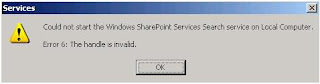
When you will try to start Windows SharePoint Search Service but not start it & fire below error.
"Could not Start Windows SharePoint Services Search Service on Local Computer."


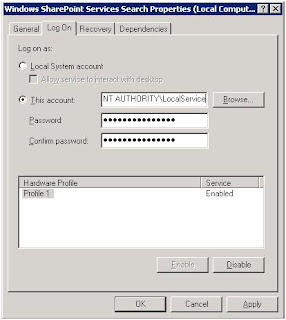
Modify the "Log On" Identity of the service as per below Image. In my machine, it was setup to log on as "Local Service". After changed this to "Local System", the service started without any errors.
Happy Programming with SharePoint !!!


Saturday, April 4, 2009

Create SharePoint WebPart using Visual Studio SharePoint Extension

  • Install Visual Studio SharePoint Extension.
  • Open Visual Studio and create New Project > Select SharePoint as Project Type > Select Web Part project template.
  • Then open Webpart1.cs file and add below things in render method.

protected override void Render(HtmlTextWriter writer)

{

writer.write("My First Web Part.");

}

  • Open Property Window of this project and Go TO Debug Tab and add your site URL to Start browsing with URL http://MyPC:100/MyFistSite/" (As per below Image)


  • Right Click on Project in Solution Explorer and Select Deploy.
  • After Successfully Deploy open your SharePoint site and Add Your First Web Part on your Web Part Page.

Very Easy to work with SharePoint Web Part.